
Artwork and Files
How to Design a T-Shirt: From Idea to Print-Ready Artwork
Apr
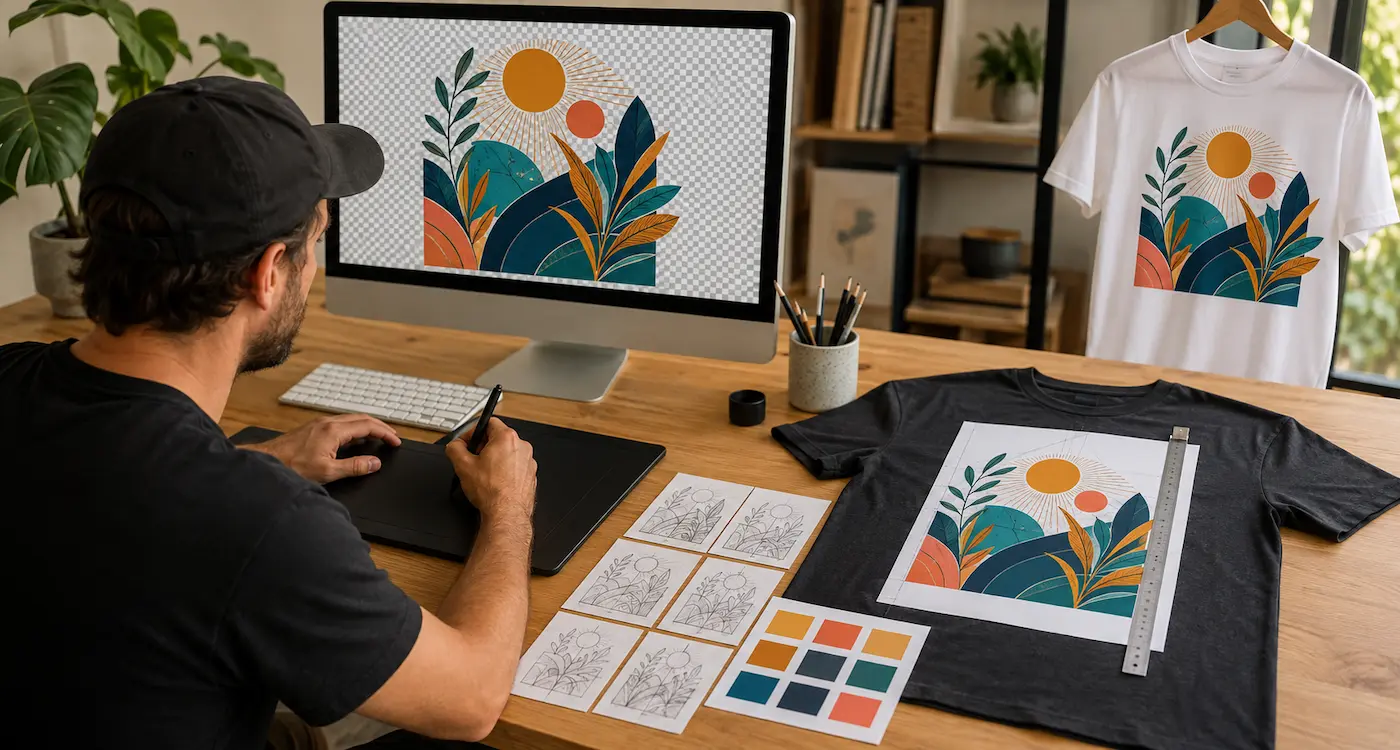
To design a T-shirt, start with the person who will wear it, choose the garment and print position, then develop artwork that works at the intended size. Finish by checking the exported file and applying a physical sample before producing the full order.
The design needs to work as part of a garment. Shirt colour, fit, fabric, placement and print coverage all affect how the finished result looks and feels.
This guide takes you from the first idea to print-ready artwork for direct-to-film (DTF) transfers, with practical checks at each stage.
TL;DR
- Write a short brief. Identify the wearer, purpose and main message.
- Choose the shirt early. Develop the artwork around its colour, fit and available print area.
- Create one clear focal point. Let secondary text and details support it.
- Check the real dimensions. Use a correctly scaled paper template on the garment.
- Prepare the final file carefully. For our DTF orders, use a transparent PNG at 300 DPI at the required print size and check the current artwork requirements.
- Approve a physical sample. A mock-up cannot confirm printed colour, surface feel or application quality.
1. Define the design brief
Decide what the shirt needs to do before choosing fonts or opening a design program. A staff uniform needs different information from an artist’s print or a one-off celebration shirt.
Write one sentence that identifies the wearer, message and intended character. For example: “A bold back design for a Brisbane gardening team, with the business name readable from a few metres away.”
Use that sentence to assess your choices. If an extra illustration or line of text makes the main message harder to understand, it may not belong in the design.
Collect references without copying a finished design
Look at colour combinations, lettering, layouts and garments that suit the audience. Identify what you like about each reference rather than following one shirt closely.
You might borrow the broad idea of a circular badge, then create your own illustration, wording and arrangement. Keep a record of source material and check the commercial-use permissions for any fonts, photographs or other assets you include.
Our T-shirt design trends guide offers starting points for visual directions. Use them to develop an idea that belongs to your project.
2. Choose the garment and printing method
The blank shirt is part of the composition. Select its colour, fit and fabric early enough to influence the artwork.
An oversized tee offers different proportions from a fitted or children’s shirt. A pocket, seam or panel can limit the print area, while fabric texture and stretch affect the result.
Check the design against every garment colour you plan to offer. Dark artwork that looks clear on white may disappear on navy or charcoal. Our T-shirt fabric guide explains the main garment terms.
Understand what the decoration method allows
DTF can suit detailed colour illustrations, photographs, gradients and short runs. The image is supplied on carrier film and applied to compatible fabric using the relevant product instructions.
The print sits on the garment surface. A large solid panel can feel more substantial than an open design with less coverage. Remove an unnecessary background when it improves the composition and finished feel, rather than treating every rectangular image as a finished shirt design.
Some artwork or orders may suit another method. Read DTF transfers explained for the main product choices and limitations before finalising the file.
3. Develop the idea and composition
Sketch a few small layouts before refining one. Try an image-led version, a lettering-led version and a combination. Use simple blocks and rough shapes so you can judge the arrangement without spending time on detail.
Choose the concept that communicates the brief most clearly. Complexity is useful only when it adds something the wearer or viewer will appreciate.
Give the design a clear order
Decide what people should notice first. Use size, position and contrast to make that element dominant, then arrange supporting details around it.
Leave enough space between elements to keep them distinct. Align text and illustrations deliberately; slight accidental offsets can make a layout feel unfinished.
Reduce the artwork to a thumbnail to check the overall balance. Then inspect it more closely for details. These are different checks: the thumbnail tests the composition, while a close view helps you find technical problems.
4. Refine lettering and colour
Use lettering that suits the message and remains readable at the intended size. One or two complementary typefaces are usually enough for a clear starting point.
Check thin strokes, small spaces inside letters and distressed text. Adjust spacing where necessary and simplify secondary wording that is too small to serve a useful purpose.
Confirm names, dates, contact details and punctuation in the final layout. If you are working for a customer, ask them to approve the actual wording rather than relying on an earlier message.
Design against the shirt colour
Use contrast to separate important elements from the garment and from each other. A limited palette can strengthen a design even though DTF allows full-colour printing.
Keep the intended garment colour behind the artwork while designing, but do not accidentally include that background in the exported transfer file. Areas that should reveal the shirt need to be genuinely transparent.
A screen emits light and cannot guarantee the final printed colour. Order a sample when brand colours or subtle tonal differences matter. Also inspect glows, soft shadows and translucent edges: they may not behave like a normal colour gradient when printed with a white layer and adhesive.
5. Set print size and placement on the actual shirt
Measure the garment and the area your equipment can press evenly. Choose both the width and height of the design, then check its relationship to the collar, seams and the person wearing it.
| Position | Design consideration | Physical check |
|---|---|---|
| Centre front | Balance the artwork’s width and height with the shirt. | Check collar clearance, side edges and how the print sits when worn. |
| Left chest | Simplify detail so the logo remains readable at a smaller size. | Check its relationship to the centre line, collar and any pocket. |
| Back | Plan the main graphic and any supporting information together. | Check shoulder width, neckline and the full supported press area. |
| Sleeve | Use artwork suited to a narrow area. | Check seams and whether the sleeve can be loaded and pressed evenly. |
| Children’s or fitted garments | Consider a separate transfer size. | Test the artwork on the actual smaller or differently shaped garment. |
Print a paper template at the intended dimensions. Turn off “fit to page” and measure the result with a ruler; printer scaling can change its size. Position the template on the shirt and view it from a normal distance.
Do not assume that 100% zoom on a screen shows the physical print size. Screen scaling and pixel density vary. Use the paper template to judge size and placement, then confirm them with a printed sample.
6. Create an editable master
Choose software that can produce the artwork you need. Vector tools suit scalable logos and lettering; raster tools suit photographs, painted artwork and pixel-level editing. A browser-based editor can also work if it exports the required size and transparency correctly.
Keep the editable master separate from the PNG you upload. Preserve useful layers and editable text so a change of name, date or colour does not require rebuilding the design.
Review AI-assisted artwork like any other source material
AI can help explore ideas or produce an initial image, but the output still needs design and production checks. Inspect lettering, faces, hands, repeated objects, edge quality and unwanted marks.
Replace inaccurate generated text with properly typeset wording where necessary. Check that the image has enough useful detail at the intended print size, and do not mistake newly generated upscaled detail for an exact recovery of the original.
Review the tool and asset terms before commercial use. For a broader permissions checklist, see our guide to copyright issues in T-shirt design.
7. Export print-ready DTF artwork
For our DTF orders, supply a transparent PNG at 300 DPI at the required physical print size. Follow the current DTF artwork requirements for colour settings, upload limits and other product-specific details.
Resolution must relate to the finished dimensions. For example, a design 254 mm wide is 10 inches wide. At 300 DPI, it needs 3,000 pixels across. Merely changing a small file’s DPI label does not create those pixels or restore missing detail.
Fine-detail measurements also depend on resolution. A pixel count is not a fixed millimetre size. Check important strokes and isolated details at the intended output dimensions, and use the artwork guide rather than an approximate pixel-to-millimetre rule.
Check transparency and edges
View the exported PNG over light, dark and brightly coloured backgrounds to reveal stray pixels, pale halos and unwanted boxes. Make sure a chequerboard pattern has not been saved as part of the image.
Use magnification to inspect individual pixels and edges. Then return to the physical-size checks to judge whether the details are useful and readable on a shirt.
Crop unnecessary empty canvas space without cutting into the artwork. Reopen the final export and confirm its dimensions, transparency and content before uploading it.
8. Proof the file and test a sample
Use different proofs for different questions. A mock-up shows the concept, a measured paper template checks scale and placement, and a physical print reveals colour, coverage, surface feel and application quality.
For customer work, label the proof with its version, dimensions, garment colour and position. Obtain approval for those details before ordering. Your approval process is separate from our transfer service, which prints artwork as supplied.
Catch problems before they become printed stock
Common issues include poor garment contrast, an oversized print, unreadable secondary text, a background box and a low-resolution image enlarged too far. A final check of the actual uploaded file catches mistakes that reviewing an earlier working version may miss.
If a design relies on very fine distress, transparency or a colour-critical image, make sampling part of the plan rather than waiting for a problem in the full run.
Order the sample at its production size
Choose the transfer format for your artwork and application equipment. A custom DTF gang sheet can hold several approved designs or sizes, with room left to separate them.
Apply a sample to the intended garment using the current fitting instructions. Inspect the placement, colour, adhesion and garment response, then assess performance under the intended care conditions before scaling up.
Final artwork checklist
- The design communicates the brief clearly.
- The main text and image are readable at normal viewing distance.
- The artwork works against every intended garment colour.
- The dimensions and placement have been checked on the actual garments.
- Names, dates and other wording are correct.
- Permissions and commercial-use terms have been reviewed.
- The PNG has the required pixels, dimensions and transparent background.
- Edges are clean and fine details have been checked.
- The correct final version has been approved and selected for upload.
- A physical sample is planned before the full production run.
Frequently asked questions
What file should I supply for a DTF T-shirt design?
Supply a transparent PNG at the final print dimensions and 300 DPI, following the current artwork requirements. Crop unnecessary empty space and check the exported file before uploading it.
Can I make a small image print-ready by changing it to 300 DPI?
No. Changing the DPI label does not restore missing image information. Check the actual pixel dimensions at the size you want to print and improve or recreate the source artwork where needed.
How wide should a T-shirt design be?
Choose the width around the artwork, garment and placement. Measure a paper template on the actual shirt rather than relying on one standard dimension for every design.
Can one transfer size work across the whole range?
Sometimes. Check the smallest and largest garments, along with any different cuts. Use additional transfer sizes where one size looks unbalanced or extends beyond a suitable print area.
Why is there a white outline around my design?
It may come from background removal, pale edge pixels or partial transparency. Inspect the exported file over contrasting colours and clean the source edges before ordering.
Can AI-generated images be used?
They can form part of a design workflow, but need checks for accuracy, permissions and print quality. Review the final image and export just as carefully as other artwork.
Will my artwork be fixed before printing?
Our service prints artwork as supplied. Complete any editing and confirm spelling, transparency, resolution and dimensions before placing the order.
Bring the idea and the garment together
A successful T-shirt design starts with a clear purpose and ends with a checked physical product. Develop the artwork around the garment, refine the details and verify the file before ordering.
When it is ready, browse the DTF transfer range. If you plan to sell the finished shirts, our guide to starting a T-shirt business with DTF transfers covers the next steps.
